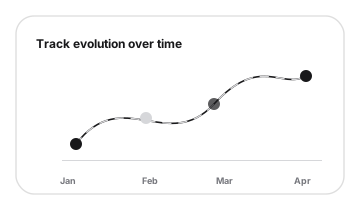
Visual history
History and timeline are verified concepts in product docs and UI.
Feature
PixelWatch keeps a visual history so teams can look back at snapshots and understand when a monitored page changed.
Grounded in current product capabilities: monitored URLs, screenshots, visual diffs, alerts, and history.
History and timeline are verified concepts in product docs and UI.
Full-page screenshots support reviewing earlier page states.
Website history is most useful when each snapshot gives your team a clear before, during, and after view of a monitored page. PixelWatch keeps visual context attached to the URL, so a page change can be reviewed as part of a sequence instead of a one-off surprise.
Keep the earlier full-page screenshot available so a later visual change has context beyond memory or a manual note.
Use the alert trail and visual diff to understand what changed on the monitored page and whether it needs a response.
Look back across snapshots when you need to explain how the page evolved across edits, launches, client requests, or competitor moves.
A timeline works best when the page being watched is important enough to revisit and the review context is clear.
History becomes more useful when each monitored URL represents one page your team wants to understand over time.
Daily checks create a regular record of page states, making it easier to spot when a visible change appeared.
A timeline is easier to use when someone knows why the page is monitored and who should review important changes.
History is not only an archive. It helps reviewers answer practical questions when a page owner, client, or founder needs evidence.
Use the timeline when a client, founder, marketer, or product owner asks when a visible change first showed up.
Use earlier snapshots to see whether the latest diff is isolated or part of a series of page updates.
Use previous screenshots when a team needs to compare the current page with the version they remember, approved, or reacted to.
For competitor pages, history helps founders and marketers see whether messaging, pricing presentation, or page structure is shifting over time.
A timeline is most useful when the past page state can answer a real question for a founder, marketer, agency, or QA owner.
Look back across daily snapshots to see when pricing presentation, plan blocks, proof, or CTA placement changed on a competitor page.
Keep the earlier approved page state near the latest screenshot so an agency can explain what changed after a published edit.
Use history when a launch page changes across copy, layout, image, or proof updates and the team needs a record of the visible sequence.
Treat the timeline as a path from current state to earlier context. The goal is to make the change explainable, not just archived.
Review the current full-page screenshot first so the timeline starts from the page state visitors can see now.
When one date or change matters, use the visual diff to compare the earlier screenshot with the newer page state.
Use the timeline to support a concrete follow-up, such as a founder note, client QA review, campaign check, or competitor update.
History is strongest when it answers when and how the visible page state changed. Use these boundaries to decide when a timeline is the right view.
The question is sequence: when a visible change appeared, what the page looked like before, or whether updates are repeating.
The question is focused on one before-and-after moment and the reviewer needs to inspect exactly what changed.
A timeline is clearest when one monitored URL represents one page purpose. Reusing the same URL for unrelated campaigns makes review harder.
These questions keep the timeline grounded in evidence and prevent it from becoming a vague archive.
It preserves page-state context: the earlier full-page screenshot, the latest screenshot, and the comparison trail reviewers need when a monitored URL changes.
No. The timeline shows visual evidence. The reviewer still decides whether the change was expected, useful, accidental, or worth sharing.
Use it for pages where the past state matters, such as competitor pricing pages, product pages, campaign pages, and important client pages.
Review how competitor messaging, design, pricing presentation, and page structure changed over time.
Open a specific change and compare the before-and-after states when the timeline points to a moment worth inspecting.
Use the history timeline when the question is about sequence and context. Use these pages when the next step is inspecting a single diff, getting notified, or planning a monitoring set.
Use the diff page when you need to inspect a single change between two screenshots.
Use the intelligence hub when long-term visual history supports competitor messaging, pricing, or product-page review.
Use the tracker to decide which competitor pages deserve long-term visual history.
Continue with the pages that naturally support this workflow.
Add a URL, let PixelWatch check it daily, and review the visual history when something changes.
Featured on