Alert workflow
Alerts are part of the verified PixelWatch product model.
Feature
PixelWatch checks the pages you care about and tells you when the visible content changes. Add a URL, choose how you want to be notified, and review the screenshot and visual diff when an alert fires.
Grounded in current product capabilities: monitored URLs, screenshots, visual diffs, alerts, and history.
Alerts are part of the verified PixelWatch product model.
Alerts can lead users into screenshot and visual diff review.
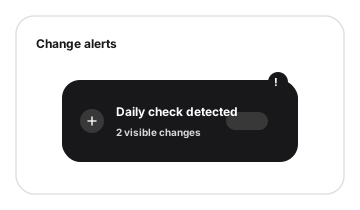
PixelWatch checks the pages you care about and sends an alert when the visible content changes. Instead of a vague notification, each alert links to the latest screenshot, highlighted visual diff, and full page history so you can decide what to do next.
Choose the web page that matters, such as a client page, product page, pricing page, or competitor landing page, and add the published URL to monitoring.
PixelWatch can check the page daily and compare the latest full-page screenshot with the previous version, so the alert points to visible evidence.
Get notified when a web page changes, then inspect the screenshot, visual diff, and history before deciding whether the change needs follow-up.
To set up an alert when a webpage changes, start with one published URL and a clear reason to watch it. PixelWatch monitors the URL with daily screenshots, then uses alerts to route attention to the changed page, visual diff, and history.
Use the exact page you want watched, such as a homepage, pricing page, product page, landing page, or client page after publish.
The monitor keeps a screenshot history for the URL, so each alert can be reviewed against the previous visible page state.
When the monitored page changes, route the reviewer to the latest screenshot, visual diff, and history instead of relying on memory.
Good alerts start before the first change appears. Choose pages and owners that turn a notification into a clear next action.
Start with URLs where a visual change creates a real decision: a client follow-up, a marketing review, a founder note, or a competitor intelligence update.
Assign the person who should open the alert. Alerts work best when someone is responsible for deciding whether the diff is expected, useful, or a problem.
Write down what you care about on the page: copy, layout, pricing presentation, proof, CTA placement, internal links, or the overall visual state.
Useful when messaging, positioning, proof, or page structure changes affect how you read the market.
Useful when packaging language, visible pricing structure, or offer presentation deserves quick review.
Useful when an agency needs a lightweight QA signal after a published Webflow, Bubble, or no-code page changes.
Useful when a page supports a launch, campaign, SEO test, or conversion path and visible changes should not be missed.
Useful when title copy, hero content, proof, internal links, CTA placement, or page structure changes could affect an SEO review.
For competitor workflows, start from competitor website monitoring. For SEO change alerts, watch high-value landing pages where visible copy, proof, structure, or internal links deserve review. For visual QA workflows, connect alerts to the visual diff tool.
The best alerts point to a page change that affects a decision. These examples keep the review tied to visible evidence instead of a vague notification.
A competitor changes the visible pricing layout, offer language, or plan presentation. The alert tells the reviewer to open the screenshot and check whether the change affects positioning or sales follow-up.
A monitored landing page swaps proof, changes CTA placement, or rearranges sections. The reviewer can use the visual diff to decide whether the update is expected or worth discussing.
A high-value organic page changes its headline, visible structure, proof, or internal links. The alert gives the SEO or marketing owner a prompt to inspect the screenshot and decide whether the change needs follow-up.
A client page changes after a Webflow, Bubble, or no-code edit. The alert gives the agency a prompt to compare the latest full-page screenshot with the earlier page state.
Treat the alert as a routing signal. The useful work is the short review that connects the notification to screenshots, visual diffs, and history.
Start with the latest full-page screenshot so the alert is tied to the actual visible page state.
Use the visual diff to see where the page changed instead of scanning the full page from memory.
Use the history timeline when the reviewer needs to understand whether this is a one-time edit or part of a longer pattern.
A useful alert workflow does not treat every pixel movement as equally important. Define what deserves review before the page starts changing.
Prioritize visible changes to headline copy, pricing presentation, page layout, product claims, CTA placement, proof, internal links, or important client-page sections.
Treat small rotating modules, temporary banners, date text, and other known page churn as lower-priority unless they affect the page owner or customer experience.
Open the screenshot, diff, and history when the alert affects a page with a named owner, an active campaign, a client handoff, or a competitor intelligence question.
Alerts work best when a changed page has a next step. Use the boundaries below to keep monitoring focused on pages that someone will actually review.
A specific URL matters enough that someone should know when its visible state changes during daily checks.
The main question is what changed between the earlier screenshot and the latest full-page screenshot.
If nobody will review the result or the page changes constantly in ways your team ignores, keep it out of the first monitoring set.
Website change alerts sit between monitoring and review. These pages help route the next step based on why the URL is being watched.
Use this hub when alerts are mainly for competitor pricing, messaging, launch, or product pages.
Use this hub when alerts are mainly for client-site QA and published no-code pages.
Use this page when pricing presentation, packaging language, or offer changes are the main alert target.
Use this feature page when the next step after an alert is inspecting what changed in the screenshots.
Add the URL you want to watch to PixelWatch, choose where notifications should go, and let daily checks run. When the visible page changes, you get an alert with a link to the latest screenshot, visual diff, and history.
Yes. PixelWatch monitors individual published URLs such as pricing pages, homepages, product pages, or competitor landing pages. Each URL gets its own alert history.
PixelWatch starts with a free trial. You can add a URL, run checks, and receive alerts without writing code or installing a browser extension.
Google Alerts tracks new content and links. PixelWatch tracks visual changes on a live page — pricing updates, layout shifts, proof changes, and CTA moves — and shows you a before-and-after screenshot.
Paste the page URL into PixelWatch, pick the notification channel, and save the monitor. Daily checks run automatically and alerts arrive only when the visible page changes.
Continue with the pages that naturally support this workflow.
Add a URL, let PixelWatch check it daily, and review the visual history when something changes.
Featured on